Installation Guide
This guide covers deploying Safe Exam Support (SES) on a single production server, suitable for small to medium implementations.
High Availability Architecture
For larger implementations requiring zero-downtime failover and automatic database recovery, SES also offers a multi-VM HA architecture with Patroni auto-failover, Docker Swarm, and pgBouncer connection pooling. This setup survives individual VM failures and handles exam-start connection bursts gracefully. Contact the project team for more information on HA deployment.
Prerequisites
Server Requirements
| Resource | Minimum | Recommended |
|---|---|---|
| CPU | 4 vCPU | 8 vCPU |
| RAM | 8 GB | 16 GB |
| Storage | 50 GB SSD | 150 GB SSD |
| OS | Ubuntu 22.04 LTS | Ubuntu 24.04 LTS |
Network Requirements
- Public IP address with ports 80 and 443 open
- Domain name pointing to the server IP
- Outbound HTTPS (443) for Let's Encrypt validation
Software Requirements
- Docker 24.0+
- Docker Compose 2.20+
- Make (optional, for convenience commands)
Architecture Overview
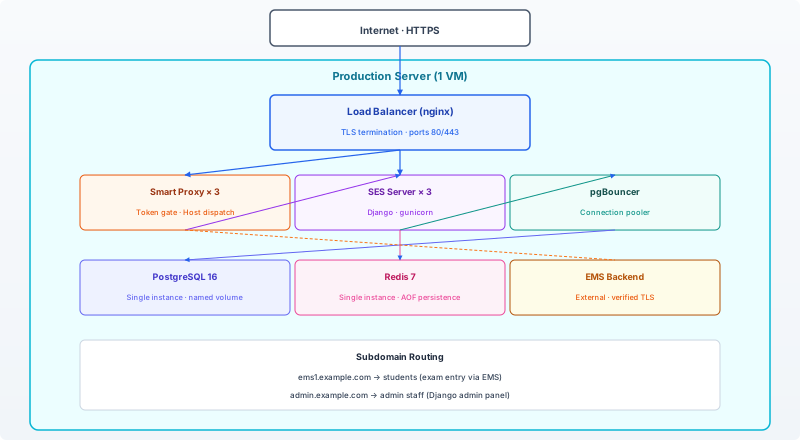 Figure 1: Single-server deployment architecture
Container Stack
| Service | Image | Purpose |
|---|---|---|
load-balancer |
nginx:1.27-alpine | TLS termination, routing |
ses-proxy (3x) |
Custom | Smart proxy with Lua validation |
ses-server (3x) |
Custom | Django backend |
postgres |
postgres:16-alpine | Primary database |
pgbouncer |
Custom | Connection pooler |
redis |
redis:7-alpine | Session cache, rate limiting |
High Availability Architecture
For larger deployments, SES offers a multi-VM HA architecture with automatic failover:
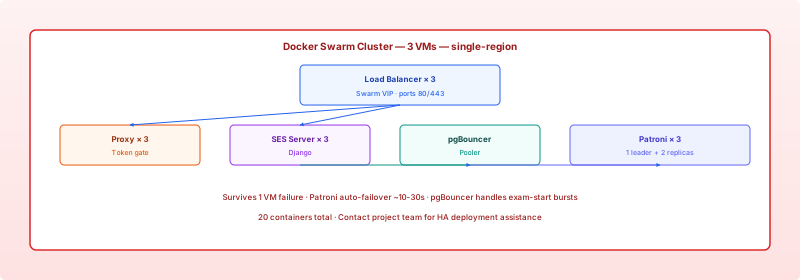 Figure 2: Multi-VM HA architecture with Patroni auto-failover
| Feature | Single Server | HA |
|---|---|---|
| VMs | 1 | 3 |
| Containers | 9 | 20 |
| Database | Single PostgreSQL | Patroni cluster (1 leader + 2 replicas) |
| Failover | Manual restart | Automatic (~10-30s) |
| Connection pooling | pgBouncer | pgBouncer |
| Load balancer | Single nginx | 3 replicas (Swarm VIP) |
| Survives | Process crash | 1 VM failure |
Contact the Project Team
HA deployment requires additional infrastructure planning (Docker Swarm setup, network configuration, backup strategy). Contact the project team for guidance on HA deployment.
Step 1: Prepare the Server
1.1 Update System
apt update && apt upgrade -y
1.2 Install Docker
curl -fsSL https://get.docker.com | sh
usermod -aG docker $USER
1.3 Install Make (Optional)
apt install -y make
1.4 Configure OS Limits
Create systemd override for Docker:
mkdir -p /etc/systemd/system/docker.service.d
cat > /etc/systemd/system/docker.service.d/ulimit.conf << 'EOF'
[Service]
LimitNOFILE=65535:65535
EOF
systemctl daemon-reload
systemctl restart docker
1.5 Tune Kernel Parameters
cat >> /etc/sysctl.conf << 'EOF'
# SES high-concurrency tuning
net.core.somaxconn=65535
net.ipv4.tcp_max_syn_backlog=65535
net.ipv4.ip_local_port_range=1024 65535
net.ipv4.tcp_max_tw_buckets=200000
net.ipv4.tcp_fin_timeout=15
EOF
sysctl -p
Step 2: Clone Repository
cd /srv
git clone https://github.com/xxx/ses.git
cd ses
Step 3: Configure Environment
3.1 Create Environment File
cp .env.example .env.prd
3.2 Edit Configuration
nano .env.prd
Required Variables
| Variable | Description | Example |
|---|---|---|
SECRET_KEY |
Django secret key (50+ random chars) | openssl rand -hex 32 |
DB_PASSWORD |
PostgreSQL password | openssl rand -hex 32 |
REDIS_PASSWORD |
Redis password | openssl rand -hex 32 |
SES_SESSION_TOKEN_SECRET |
HMAC signing key | openssl rand -hex 32 |
DJANGO_ALLOWED_HOSTS |
Allowed hostnames | .example.com |
CSRF_TRUSTED_ORIGINS |
Trusted origins | https://*.example.com |
Optional Variables
| Variable | Default | Description |
|---|---|---|
GUNICORN_WORKERS |
16 | Worker processes |
GUNICORN_THREADS |
64 | Threads per worker |
RATE_LIMIT_GLOBAL |
500000 | Global rate limit |
RATE_LIMIT_INSTITUTE |
500000 | Per-institute rate limit |
Step 4: SSL Certificates
Choose one of the two options below.
Option A: Institute Certificate
If your institution provides a TLS certificate (e.g., from DigiCert, QuoVadis, or an internal CA):
4.A.1 Copy Certificate Files
cp your-institute-fullchain.pem services/load-balancer/certs/cert.pem
cp your-institute-privkey.pem services/load-balancer/certs/key.pem
4.A.2 Verify
openssl x509 -in services/load-balancer/certs/cert.pem -noout -text | grep -i subject
The certificate must cover all subdomains listed in Step 7 (DNS Configuration).
When the certificate is renewed by your institute, repeat 4.A.1 and redeploy:
make prod-deploy
Option B: Let's Encrypt (Free, Auto-Renewing)
4.B.1 Install Certbot
apt install -y certbot
4.B.2 Obtain Certificate
certbot certonly --standalone -d example.com \
    -d www.example.com \
    -d ems1.example.com \
    -d ems2.example.com \
    -d admin.example.com \
    -d manuals.example.com
4.B.3 Copy Certificates
cp /etc/letsencrypt/live/example.com/fullchain.pem \
    services/load-balancer/certs/cert.pem
cp /etc/letsencrypt/live/example.com/privkey.pem \
    services/load-balancer/certs/key.pem
4.B.4 Auto-Renewal
crontab -e
Add:
0 3 * * * certbot renew --quiet --post-hook "cp /etc/letsencrypt/live/example.com/fullchain.pem /srv/ses/services/load-balancer/certs/cert.pem && cp /etc/letsencrypt/live/example.com/privkey.pem /srv/ses/services/load-balancer/certs/key.pem && cd /srv/ses && make prod-deploy"
Step 5: Deploy
5.1 Start Services
make prod-deploy
Or manually:
set -a; source .env.prd; set +a
docker compose --env-file .env.prd -f docker-compose.prod.yml up -d --build
5.2 Verify Deployment
make prod-ps
All 10 containers should show (healthy) status:
NAME                 STATUS
prod-load-balancer   Up 2 minutes (healthy)
prod-pgbouncer       Up 2 minutes (healthy)
prod-postgres        Up 2 minutes (healthy)
prod-redis           Up 2 minutes (healthy)
prod-ses-proxy-1     Up 2 minutes (healthy)
prod-ses-proxy-2     Up 2 minutes (healthy)
prod-ses-proxy-3     Up 2 minutes (healthy)
prod-ses-server-1    Up 2 minutes (healthy)
prod-ses-server-2    Up 2 minutes (healthy)
prod-ses-server-3    Up 2 minutes (healthy)
5.3 Test Endpoints
curl https://ems1.example.com/health
curl https://admin.example.com/health
Expected response: {"status":"healthy"}
Step 6: Initialize Database
6.1 Run Migrations
docker exec prod-ses-server-1 python manage.py migrate
6.2 Create Superuser
docker exec -it prod-ses-server-1 python manage.py createsuperuser
Follow prompts to create an admin account.
Step 7: Configure DNS
Add DNS records for each subdomain:
| Subdomain | Type | Value |
|---|---|---|
example.com |
A | Server IP |
www.example.com |
CNAME | example.com |
ems1.example.com |
CNAME | example.com |
ems2.example.com |
CNAME | example.com |
admin.example.com |
CNAME | example.com |
manuals.example.com |
CNAME | example.com |
Step 8: Deploy Manuals
The manuals site runs as a standalone stack, separate from the main SES services.
8.1 DNS Configuration
Add a DNS record:
| Subdomain | Type | Value |
|---|---|---|
manuals.example.com |
A | Server IP |
8.2 SSL Certificate
Choose one of the two options below (must match your choice in Step 4).
Option A: Institute Certificate
If you chose Option A in Step 4, the manuals site is served through the main load balancer, which already has your institute certificate. No additional certificate is needed — skip to 8.3.
Option B: Let's Encrypt
If you chose Option B in Step 4 and want the manuals site on its own domain with its own certificate:
# Create certbot directories
mkdir -p services/manuals/certbot/conf services/manuals/certbot/www

# Request certificate (dry-run first)
docker run --rm -v "/srv/ses/services/manuals/certbot/conf:/etc/letsencrypt" \
    -v "/srv/ses/services/manuals/certbot/www:/var/www/certbot" \
    certbot/certbot certonly --webroot \
    -w /var/www/certbot \
    -d manuals.example.com \
    --email admin@example.com \
    --agree-tos \
    --no-eff-email \
    --dry-run

# If dry-run succeeds, run for real
docker run --rm -v "/srv/ses/services/manuals/certbot/conf:/etc/letsencrypt" \
    -v "/srv/ses/services/manuals/certbot/www:/var/www/certbot" \
    certbot/certbot certonly --webroot \
    -w /var/www/certbot \
    -d manuals.example.com \
    --email admin@example.com \
    --agree-tos \
    --no-eff-email
8.3 Deploy Manuals Stack
cd /srv/ses/services/manuals
make prod-up
Or manually:
docker compose -f services/manuals/docker-compose.manuals.prod.yml up -d --build
8.4 Verify
curl https://manuals.example.com/
Expected: HTML page with "Safe Exam Support Manual" title.
8.5 Auto-Renewal (Let's Encrypt Only)
If you chose Option B, add to crontab:
0 3 * * * cd /srv/ses && docker compose -f services/manuals/docker-compose.manuals.prod.yml run --rm certbot renew && docker compose -f services/manuals/docker-compose.manuals.prod.yml restart nginx
If you chose Option A, the main load balancer's auto-renewal cron (Step 4.B.4) covers the manuals domain as well.
8.6 Makefile Commands Reference
| Command | Description |
|---|---|
make up |
Build + start manuals (local) |
make down |
Stop manuals |
make rebuild |
Force rebuild + recreate |
make ps |
Show container status |
make logs |
Tail logs |
make prod-up |
Start production stack |
make prod-down |
Stop production stack |
make prod-ps |
Show production status |
make prod-logs |
Tail production logs |
Updating
Pull Latest Code
cd /srv/ses
git pull origin main
Redeploy
make prod-deploy
This rebuilds and restarts all containers with zero downtime (rolling update).
Backup
Database Backup
docker exec prod-postgres pg_dump -U ses_user ses_db > backup_$(date +%Y%m%d).sql
Automated Backups
Add to crontab:
0 2 * * * cd /srv/ses && docker exec prod-postgres pg_dump -U ses_user ses_db | gzip > /srv/backups/ses_$(date +\%Y\%m\%d).sql.gz
Monitoring
View Logs
make prod-logs-server   # Django logs
make prod-logs-proxy    # Proxy access logs
make prod-logs-lb       # Load balancer logs
Health Check
curl https://ems1.example.com/health
Troubleshooting
Container Not Starting
docker logs prod-ses-server-1 --tail 50
Database Connection Errors
docker exec prod-pgbouncer cat /var/log/pgbouncer/pgbouncer.log
SSL Certificate Issues (Let's encrypt)
certbot certificates
certbot renew --dry-run
Makefile Commands Reference
| Command | Description |
|---|---|
make prod-deploy |
Full deployment (pull + build + restart) |
make prod-ps |
List containers with status |
make prod-logs-server |
Django server logs |
make prod-logs-proxy |
Proxy access logs |
make prod-logs-lb |
Load balancer logs |
make prod-test |
Run tests inside container |
make prod-shell |
Django shell |
make load-test |
Run load test |
Security Checklist
- [ ] Changed all default passwords in
.env.prd - [ ] Generated new
SECRET_KEY - [ ] Generated new
SES_SESSION_TOKEN_SECRET - [ ] SSL certificates installed and auto-renewing
- [ ] Firewall configured (only 80, 443 open)
- [ ] Database backups configured
- [ ] Audit log retention set appropriately
- [ ] Rate limits configured for your traffic